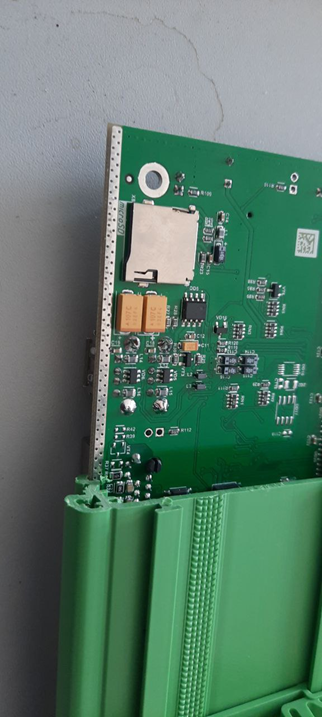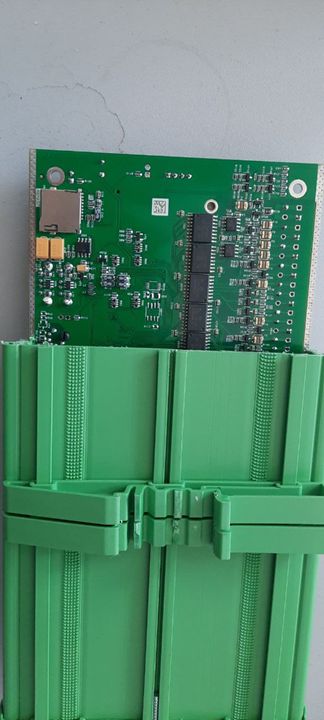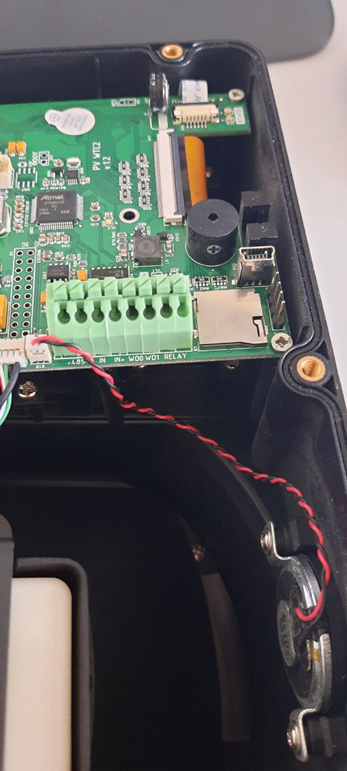
When flashing the image of the BioSmart UniPass Controller, the controller system is completely flashed, which helps with system failures (damage to the controller file system).
Below we will talk about creating a bootable flash drive for flashing BioSmart UniPass Controllers.
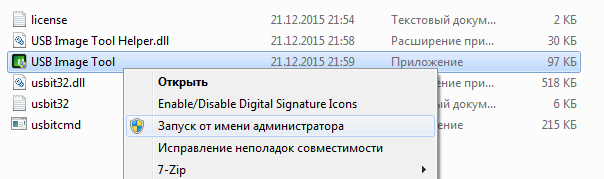
The USB Image Tool is used to create a bootable flash drive.
Run the program as an administrator.
Set operating mode "Device mode"
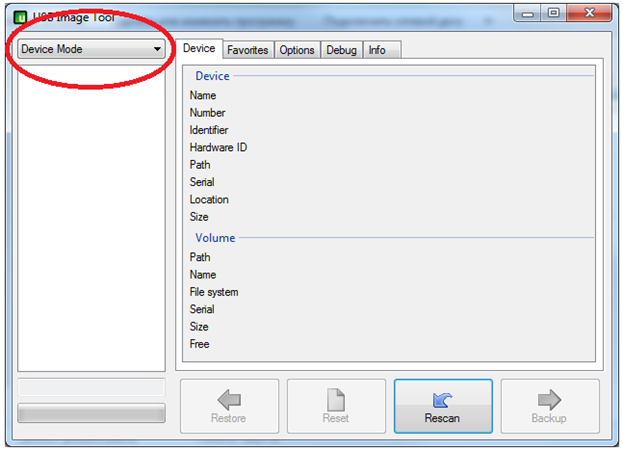
Connect microSD flash drive to PC. Recommended flash drive size: 16 GB. At the same time, all connected flash drives will be displayed in the left part of the program window. You must select the USB flash drive to which the image will be deployed. In this case, information about the flash drive will be displayed in the right part of the program window.
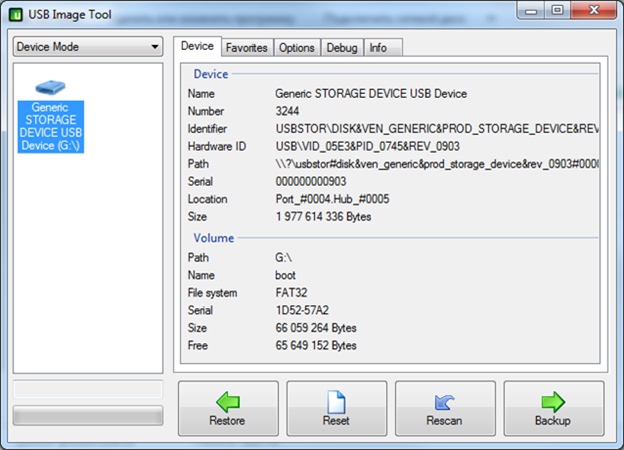
Press the button "Restore", while the program will ask you to specify the path to the image file. Next, the program will ask you if you really want to deploy the selected image on a flash drive. After an affirmative answer, the process of deploying the image will begin. In this case, the program will display the degree of the operation completion. It is important to understand that all partitions on the flash drive will be deleted and new ones will be created, while all data on the flash drive will be destroyed.
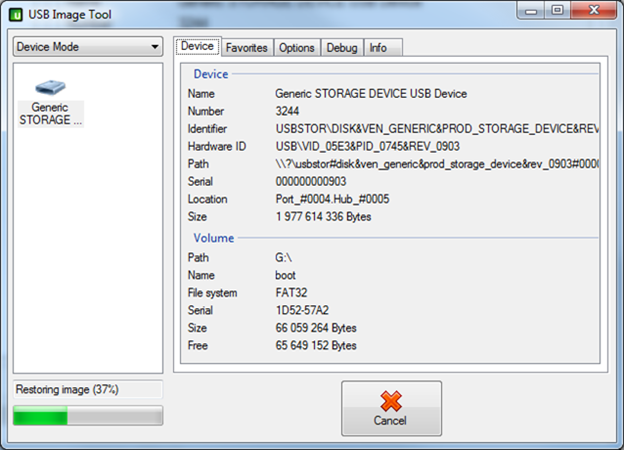
The end of the image deployment is not accompanied by additional messages.
The flash drive is ready!
To flash the BioSmart device, you need to:
When you add controller to the studio you will see another serial number, don’t worry about that.
I’ll connect to the controller and change it to the correct one.